I’ve always been a hunt-and-peck typer. I started using computers as early as was physically possible. Sadly, no one ever taught me good habits around typing (let alone ergonomics). Having some small RSI issues in my right wrist, I decided to further go down the route of mechanical keyboards, which I previously discussed here. In October 2025, I purchased a ZSA Voyager mechanical keyboard.
I should rewind a small bit - prior to the Voyager, I purchased a Kinesis Advantage 360 Pro (the wireless one), which is a great and supremely comfortable keyboard. One of the major downsides to the Advantage 360 is that it is uncomfortable for any sort of gaming. Also, there is a nice weight and robustness to the Advantage 360 which makes it unsuitable to travel in my opinion.
Naturally after liking the 360, I looked at other Kinesis options. This led me to the Kinesis Freestyle RGB which I use with my gaming PC. The Freestyle I’m least happy with since it’s so large and I find it hard to stop hitting caps lock over the ‘a’ key.
I couldn’t bring either to the office because of their size and weight, which began my search for a compact alternative. After a lot of research and YouTube reviews I came to find the Voyager. It’s very expensive, so I did a lot of thinking on it. One of the aspects that sold it for me was that ZSA seem to be a company who just want to make good products and back it up with good support. I read a lot on their website, particularly ZSA people (I enjoy immensely learning about how people optimise their work spaces.), ZSA loves and their newsletter, The Ergo.
After more than 6 months, I think it’s excellent, but only if you’re ready to adapt to split, columnar typing and layers.
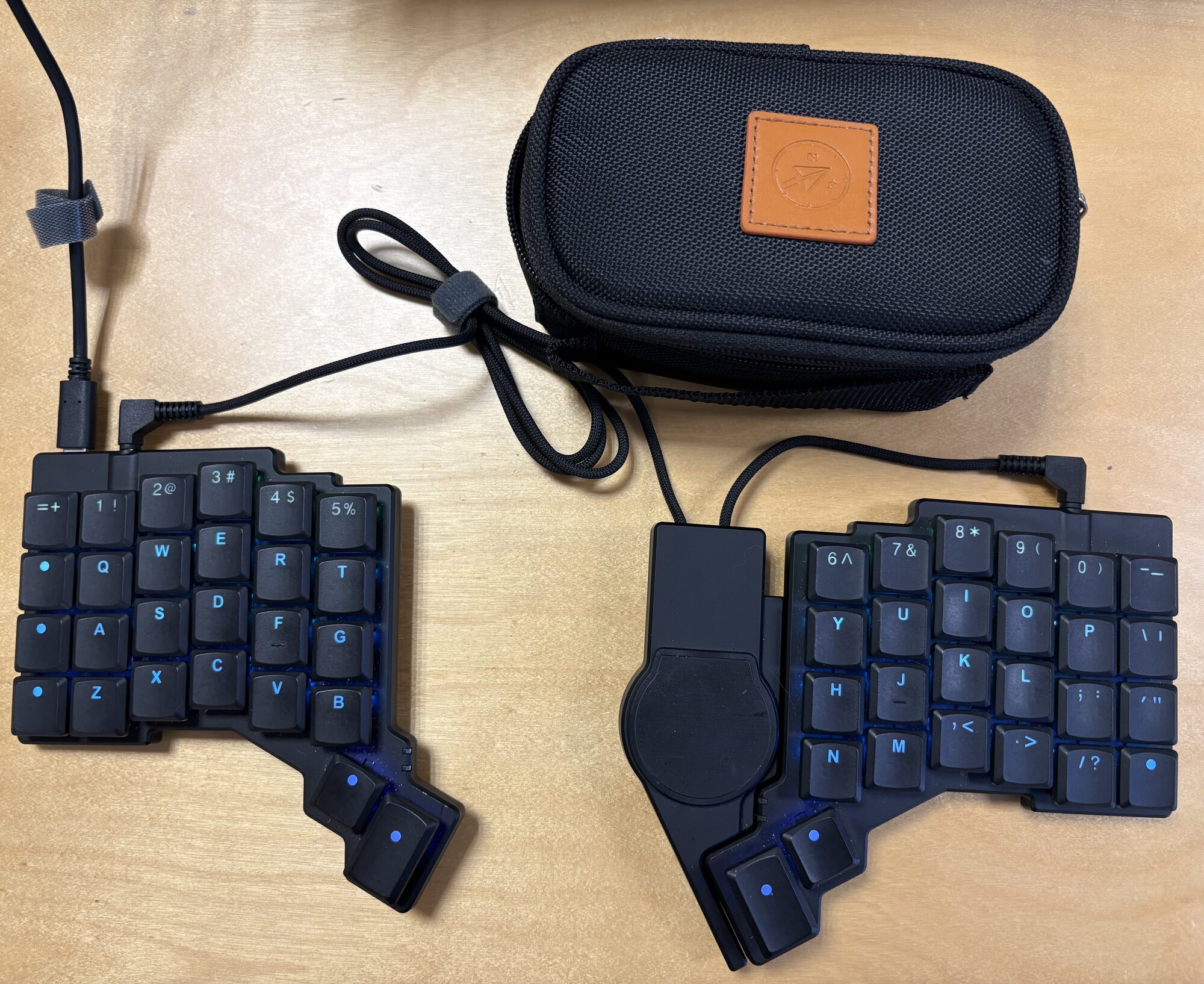
Owning the Voyager - here are some of the benefits:
- Great split compact size
- Build quality is excellent, it’s also thin but weighty
- Nice carrying case, key puller and cables included
- Magnetic risers in the case
- Excellent mounting options - can use phone stands, clamps or anything that mounts magnetically
- RGB that’s useful to tell which layer you are on (not just a gimmick)
- Great set of replaceable keycaps
- Can hot-swap any Kailh switch (can go more clicky sounding or more quiet)
- Key Configurator/remapping is the best in the business
Some downsides:
- Listed price excludes EU taxes/import charges (which recently increased)
- Comfort is subjective - it may not be for you:
- Need to be ok with a split layout
- Need to be ok with columnar layout (probably the trickiest for me given most keyboards are row-staggered layouts)
- Still have to press a button to reflash the keyboard to change layouts (no hot reloading of the key mappings)
- Layers take a while to get used to and to be honest can be infinitely “fiddly” - depends if you like this aspect or not.
- Magnetic risers don’t add much tilt and no built in tenting option
- Option to buy “Shhhocs” (rubber dampening for keys) - seems like a low cost item they could just include in the box given the price
Next worth mentioning are the accessories that ZSA sells:
- Voyager Tripod Kit (magnets that attach to the bottom and have a threaded hole for a standard camera tripod type mount)
- Navigator trackball
- Navigator trackpad (not long released to market)
I’ve purchased all three, so I can give some comment on them. The magnetic mounting kit is great if you need to tent the keyboard at a more extreme angle. I would not advise this for anyone new to split mechanical keyboards - I would say to take split and columnar layout challenges first with the included magnets. But later the option is nice to have and you can use it with any sort of camera mount like small pocket tripod or ball-joint arms. Be aware these options add a not insignificant amount of weight and if your priority is portability this should be of concern.
The next accessory option to mention is the Navigator. I bought the trackball when I got the Voyager. Full disclosure I never owned a trackball before this (I’m a mouse traditionalist), so my opinion may not hold water if it’s your preferred option. What I can say is the mounting to the side of the Voyager is secure and the included carrying case is great. I brought mine to the office with no issues, apart from having to be really careful about not losing the ball. How it works is that it sits in between both halves of your Voyager and replaces the cable between them. So the normal setup is: Voyager left half connects to computer via USB-C and then it connects to the right half with TRRS cable (like a headphone cable). This is ‘intercepted’ with a Navigator, where the left half talks to the Navigator and then the Navigator to the right half. I mention this as it could be confusing if you expected more ports.
For the trackpad option which I purchased recently, you also need to configure this in Oryx - if you had the trackball configured in your layout before, you need to remove it. Like my earlier point on updating keymaps without reflashing, swapping between the two needs a reflash of your keyboard firmware. My take on both is as follows: the trackball is the better more polished option and aesthetically looks far better. The trackpad I’m not impressed with at all, I find it far too small and not the fault of ZSA but on macOS they require a helper app (blame Apple). The helper app makes the trackpad somewhat usable (apparently on Linux and Windows it works fine). But to be honest, if you’ve used a nice trackpad (like the gold standard which is Apple’s Magic Trackpad), it will feel disappointing.
Final thoughts
I’m still not a fast typist. But I’m more comfortable at typing and my brain has adapted thanks to keybr, Monkeytype and ZSA’s own typ.ing. I would definitely recommend the Voyager if you are looking for a split (smaller) mechanical keyboard - but if it’s your first foray into mechanical I’d try something like I did originally which will be closer to what you are (probably) currently used to. It’s a transformation for how you type and adjustment time will be needed. In terms of accessories you could skip the Navigator trackpad and only get the trackball if you prefer them or like the look.